Agenda
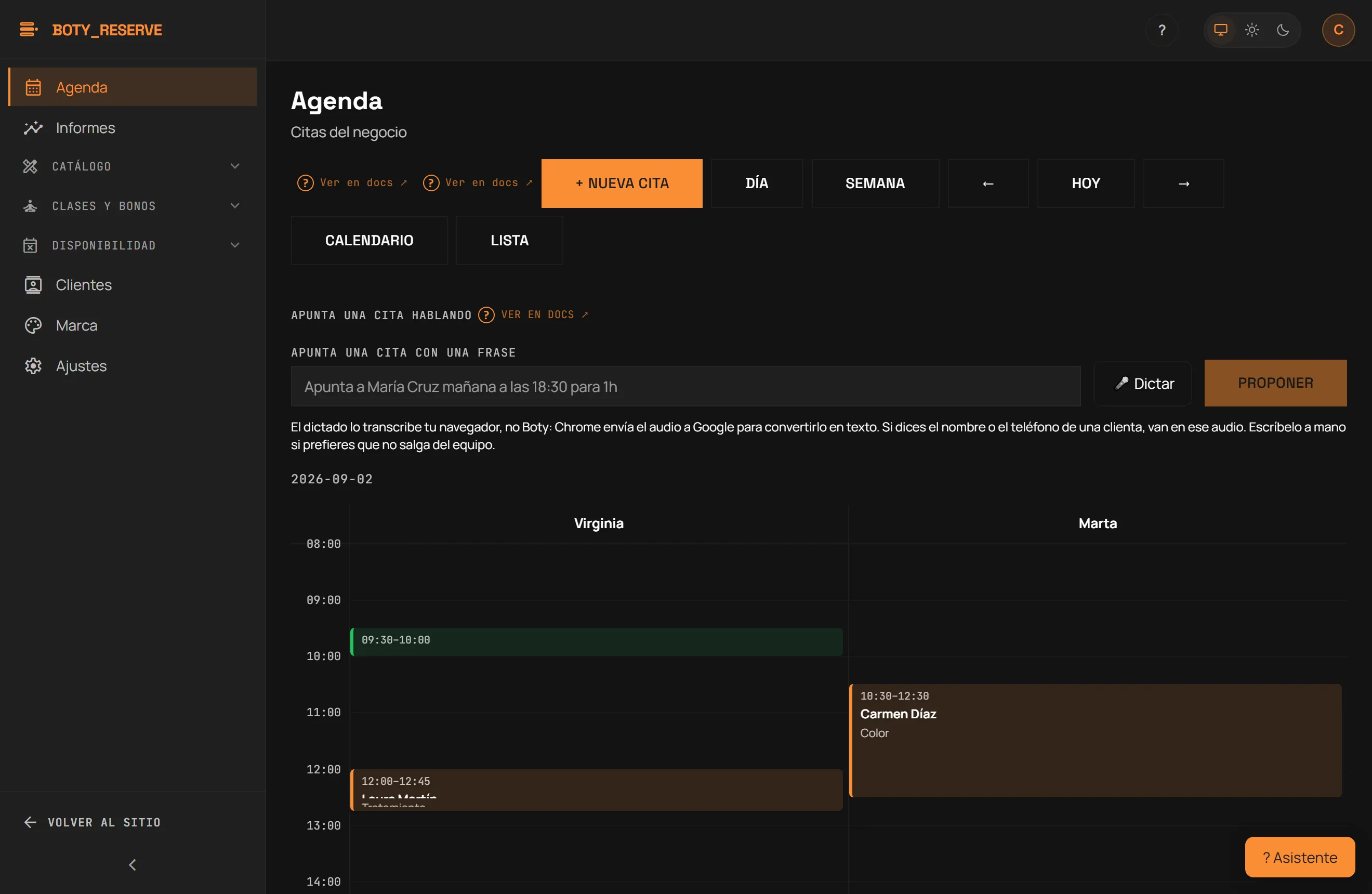
/consola (Console) — the console’s default view. Toggle between Día
(Day) and Semana (Week), navigate with Hoy (Today) / ← / →.
Every row shows time, service, professional, guest, phone, and status (Reservada/Booked, Completada/Completed, No vino/No-show, Cancelada/Cancelled), with actions to move the appointment, mark it completed or no-show, cancel it (owner/manager only), and a WhatsApp button that opens a pre-written reminder for you to send by hand (more in Reminders).
Absences to confirm
Section titled “Absences to confirm”Every night, Reserve goes over the appointments that already ended and are still “Reservada” (Booked) — nobody marked them completed or no-show — and flags them as pending confirmation. The next morning, the Día (Day) view shows a prompt: “Ayer quedaron N citas sin marcar: ¿vinieron?” (“Yesterday N appointments were left unmarked: did they come?”), listing each one with two buttons:
- Sí vino (Yes, she came) marks the appointment completed.
- No vino (Did not come) marks it no-show and adds an absence to the client.
They are the same actions as always, confirmation included, so they count in Reports exactly as if you had marked them from the row. Boty never marks an absence on its own: an appointment that ended unmarked is, almost always, a visit somebody forgot to close, and turning it into a no-show by itself would put a mark on a loyal client’s file. It only asks; the answer is yours. No email or notice goes to anyone because of this.
Adding an appointment by hand
Section titled “Adding an appointment by hand”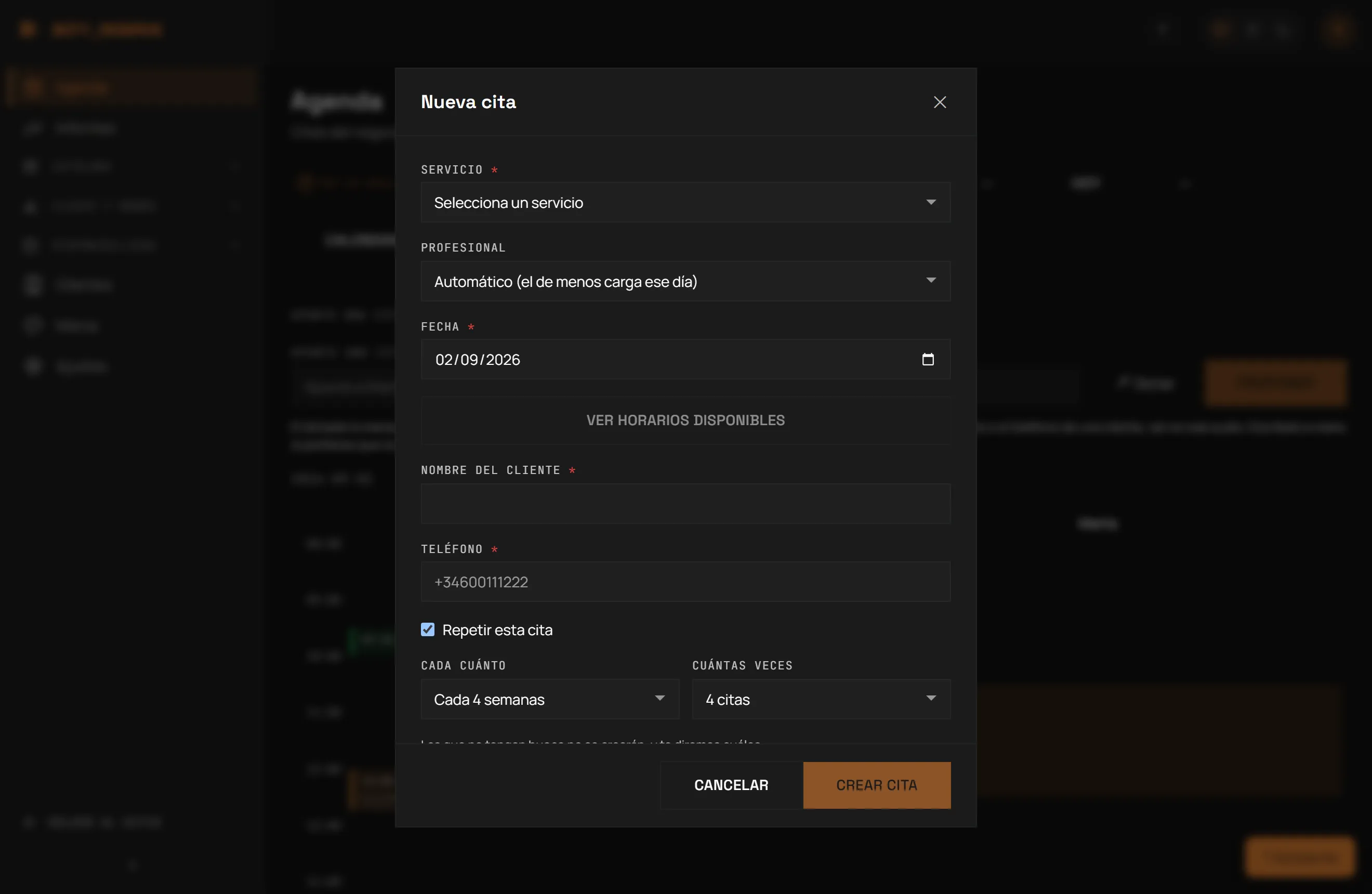
+ Nueva cita (New appointment) opens a form: service, professional (optional — leave blank for automatic assignment), date, search available times and pick a slot, guest name and phone.
For a repeating appointment, check “Repetir esta cita” (Repeat this appointment) and choose how many weeks apart (1, 2, 3, 4, 6 or 8) and how many appointments in total (2, 3, 4, 6, 8 or 12). Reserve creates each occurrence as an independent appointment, at the same local business hour — if any date has no free slot, it says so explicitly rather than pretending the whole series was created.
Jotting an appointment by talking
Section titled “Jotting an appointment by talking”Above the diary, the “Apunta una cita con una frase” (Jot down an appointment in one sentence) box takes text or voice:
- Typing: something like “Apunta a María Cruz mañana a las 18:30 para 1h” and press Proponer (Propose).
- Dictating: press the 🎤 Dictar (Dictate) button and say the sentence out loud; the button switches to ”● Escuchando” (Listening) while it hears you.
What happens next depends on the sentence. When it gives everything an appointment needs — the service, the client’s name and phone, and a free slot — and the client was not recognised by a similar name alone, Reserve books the appointment itself and shows a summary with a Deshacer (Undo) button that cancels it. In any other case (something is missing, there is a doubt, the name only resembles one of your clients, or you correct a proposal by typing over it) it returns an editable proposal (matched guest or candidates to pick from, detected service, a suggested time or alternatives) that you review and correct before pressing Confirmar (Confirm); dismissing it creates nothing. It only ever creates appointments: cancelling or moving an existing one stays with you. A sentence the AI model has to interpret uses your monthly AI quota; if you exhaust it, the box says so and + Nueva cita keeps working the same.
Waitlist
Section titled “Waitlist”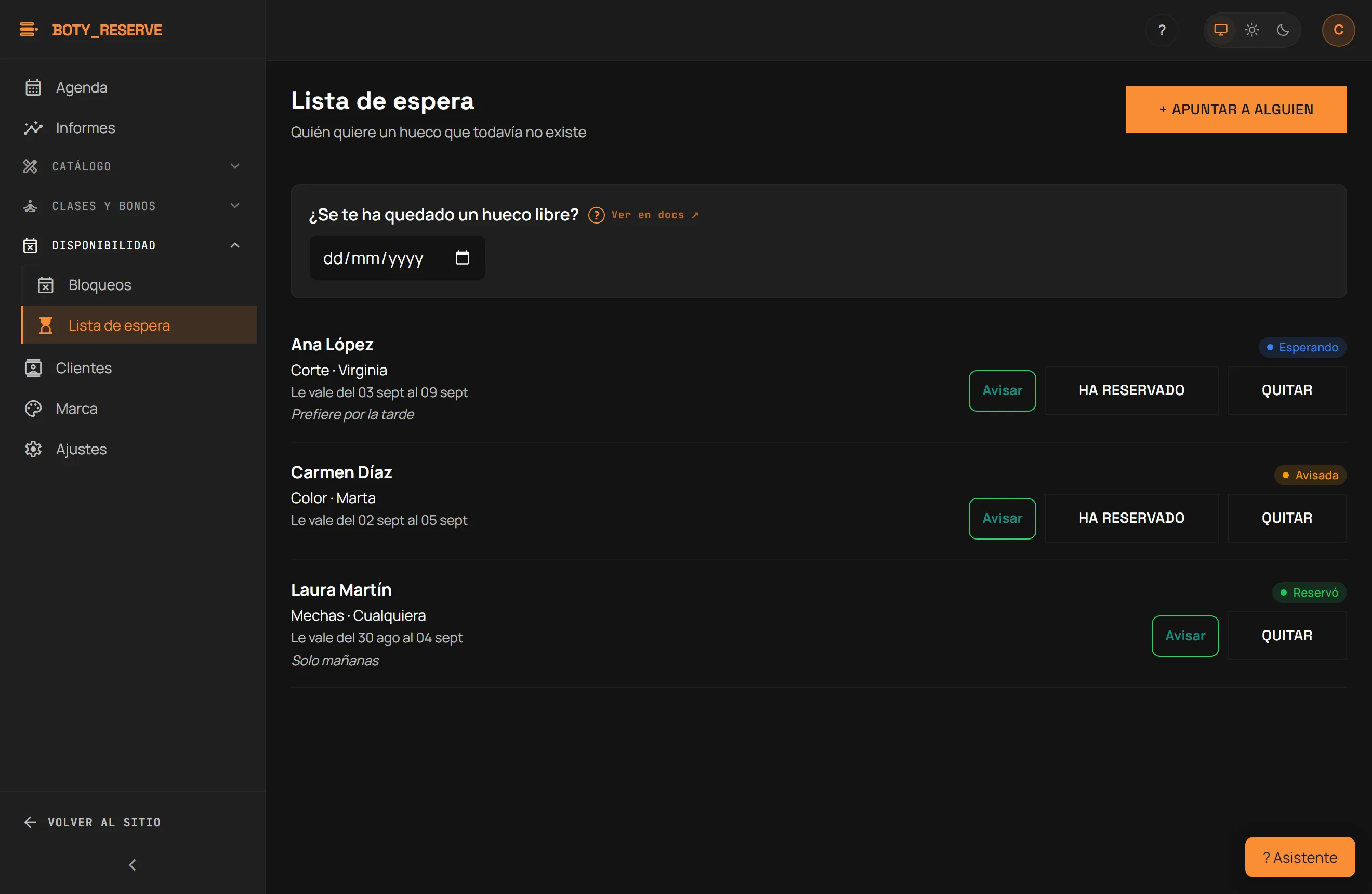
Route: /consola/espera. Clients who wanted an appointment but found
no free slot. When a booked appointment is cancelled, use this screen to
see who to offer the freed slot to.
- + Apuntar a alguien (Add someone) asks for service, optional professional, preferred date range, name and phone, and an optional note.
- Filtrar por fecha (Filter by date) shows only entries whose window covers that day, oldest first.
- “¿Se te ha quedado un hueco libre?” (“Got a free slot?”) → Avisar (Notify) opens WhatsApp or email with a manual message to that person; the entry’s status moves to “Avisada” (Notified).
- Ha reservado (Booked) / Sin respuesta (No response) / Cancelada (Cancelled) change the status by hand. Quitar (Remove — owner/manager) deletes the entry.
A guest cannot join the waitlist by themselves from the public page: adding someone is always an action the business takes, decided by whoever is running the diary.
Automatic notice when a slot frees up (Pro plan). It is off until you turn it on: at the top of the waitlist, tick “Avisar por correo a quien espera cuando se libera un hueco” (“Notify by email whoever is waiting when a slot frees up”). Only the owner or a manager can change it; on a lower plan you see the Pro lock in its place. Once it is on, every 15 minutes Reserve looks at appointments cancelled in the last few minutes and searches the waitlist for whoever asked for that service (and, if stated, that professional) with a date window covering that day. The first five in order of arrival who have an email get one — “Se ha quedado un hueco libre en {your business}” (“A slot has opened up at…”) — with the link to your public booking page and this exact line: “El hueco lo coge quien reserve primero; no lo hemos reservado por ti.” (“The slot goes to whoever books first; we have not booked it for you.”). What it does not do: it books nothing for anyone, it does not change the entry’s status (that stays yours), it does not write to anyone without an email (the Avisar button remains for them), and it does not repeat the notice to the same person within 24 hours. If you would rather someone did not receive this email, add them without one.
Availability blocks
Section titled “Availability blocks”Route: /consola/bloqueos. A block closes a window to new bookings:
holidays, training, an outside appointment.
+ Nuevo bloqueo (New block) asks for scope (a specific professional or “Todo el negocio” — the whole business), start and end date and time, and an optional reason. A block that overlaps an already-booked appointment is refused — it never silently invalidates an existing appointment. Editar and Eliminar (Edit and Delete — owner/manager only); deleting one frees that window again.
Limits
Section titled “Limits”- Cancelling an appointment is reserved to owner or manager.
- The waitlist does not assign freed slots on its own: the automatic notice, if you turn it on, only offers the slot; it goes to whoever books first.
- Reserve does not turn an unmarked appointment into a no-show: it only asks.
- Voice dictation depends on the browser; where it isn’t supported, the microphone button simply doesn’t appear and only text remains.
Última verificación: