Services and staff
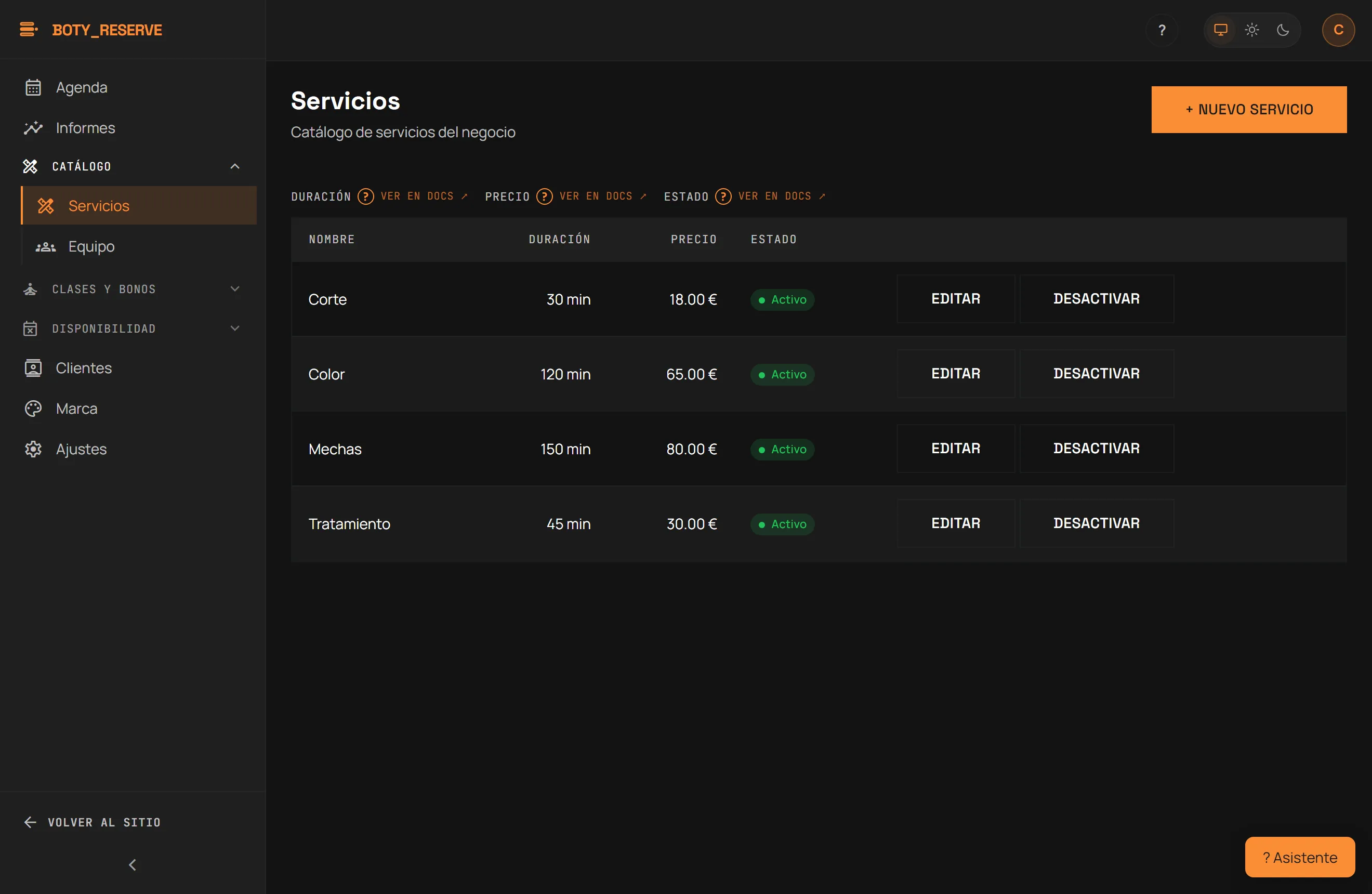
Routes: /consola/servicios and /consola/equipo. This is where you set
up what you sell and who does it — the step before a single bookable slot
exists on your page.
To add a service
Section titled “To add a service”- In Services, press ”+ Nuevo servicio”.
- Fill in name, duration (min), buffer after (min) — the gap after the appointment before the next one, optional — and price (in euros). The price is typed in euros (25 or 12.50), not cents.
- Save. The table shows name, duration, price and status.
Deactivate (owner/manager) is a soft switch-off: the service disappears from the booking page and the quick-add box, but the history of past appointments is kept — a row is never deleted. Edit changes any field. Every other role can view the catalogue but cannot create or edit services.
A new service is not automatically paired with staff who already existed — that automatic pairing only happens when a staff member is created (see below). If you add a service after your team already exists, go to Staff → Edit on each professional who should offer it and check it in “Services performed”.
To add a staff member
Section titled “To add a staff member”- In Staff, press ”+ Nuevo miembro” and type their name — nothing else is asked.
- Reserve automatically pairs them with every active service that exists at that moment, so they are bookable from minute one.
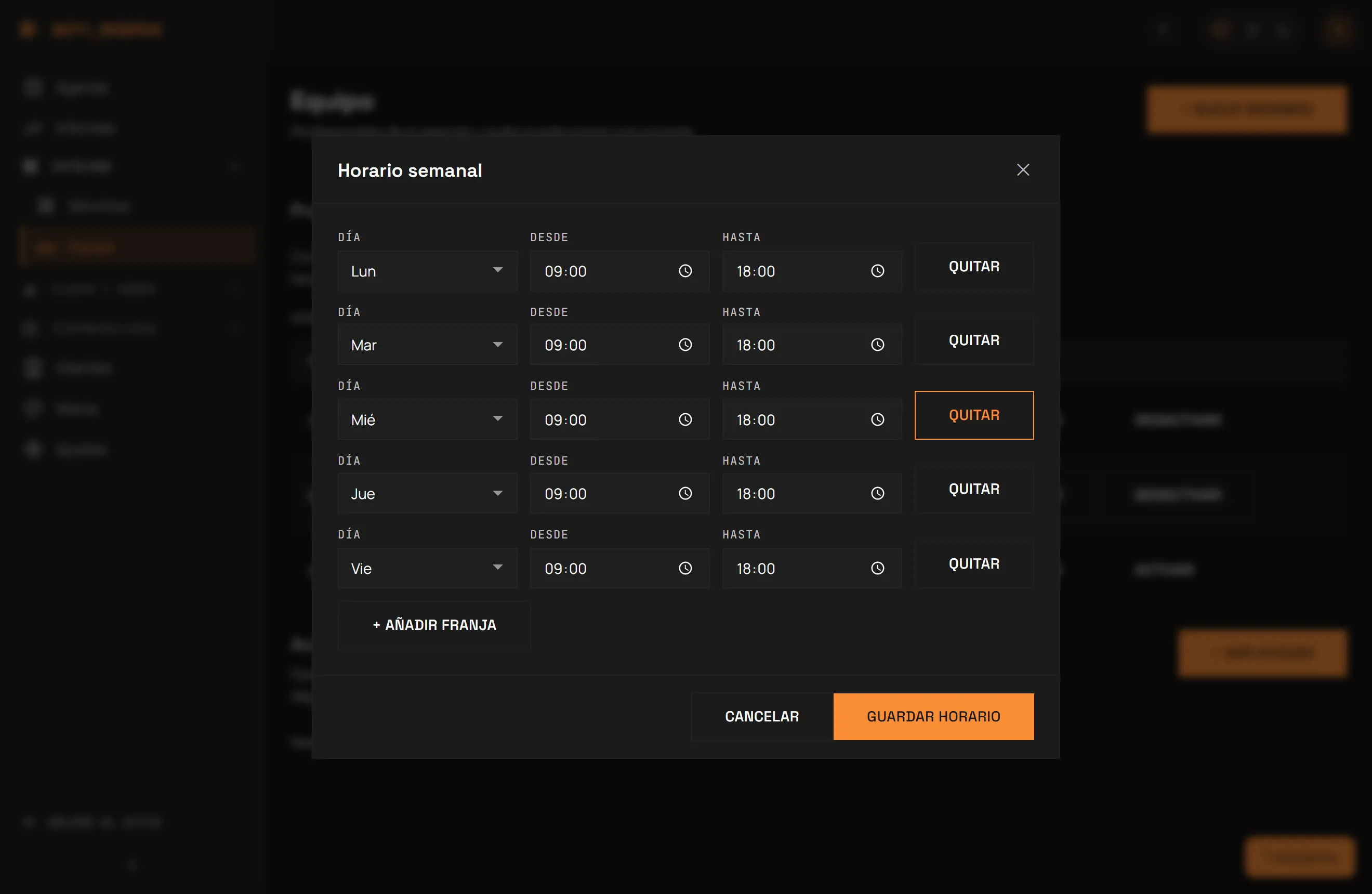
- Open Schedule and press ”+ Añadir franja” for each day and time window they work; Guardar horario saves the whole block at once.
This last step has no automation. Without schedule windows, a staff member still produces no bookable slot, even with every service already paired. The table flags it with the “Sin horario: sin huecos en la página” badge when it is missing.
From Edit you adjust the name and, under “Services performed”, check or uncheck each service in the list. Deactivate (owner/manager) removes the staff member from new bookings; their history is kept.
Your plan’s staff limit
Section titled “Your plan’s staff limit”Every level caps how many active staff members you can have at once: Free and Essential allow 1, Pro up to 5, Unlimited no cap. The Staff screen shows “N of M active staff members on your plan”.
If you try to add or reactivate someone over the cap, the console answers: “El plan [your plan] admite hasta N profesionales y ya hay N. Desactiva a alguien o cambia de plan para añadir más.” Nothing is half created and nothing extra is charged. If you already have more active staff than your plan allows — say, after downgrading — they all keep taking bookings normally; you simply cannot add or reactivate anyone else until you are back within the cap.
Console access: who can log in
Section titled “Console access: who can log in”Being staff (showing up in the agenda and on the booking page) and having console access (being able to sign in and manage the business) are two independent things: someone can serve customers without access, and the other way round.
From the “Acceso a la consola” panel, at the bottom of Staff, the owner or manager presses ”+ Dar acceso” and invites by email with one of these roles:
| Role | Can |
|---|---|
| Propietario (owner) | Everything, including billing. |
| Gestor (manager) | Everything except billing. |
| Profesional (staff) | Agenda and clients. |
If the invited person already has a Boty account, they get in instantly; if
not, they receive an email to create one. Either way they sign in at
reserve.boty.agency/consola with their own account. From this same panel
you can change someone’s role or remove their access.
Worth knowing
Section titled “Worth knowing”- A new service is checked by hand on the profile of each professional who offers it (Staff → Edit).
- Each schedule window is added one at a time, for each professional.
- The staff cap is a guard on creating/reactivating, not on service: downgrading a plan never deactivates anyone by itself.
Última verificación: