The booking page
https://reserve.boty.agency/r/<slug> is the public page where your
clients book an appointment — no account, no password. The <slug> is the
one you configure under Branding and booking
link.
The guest’s journey
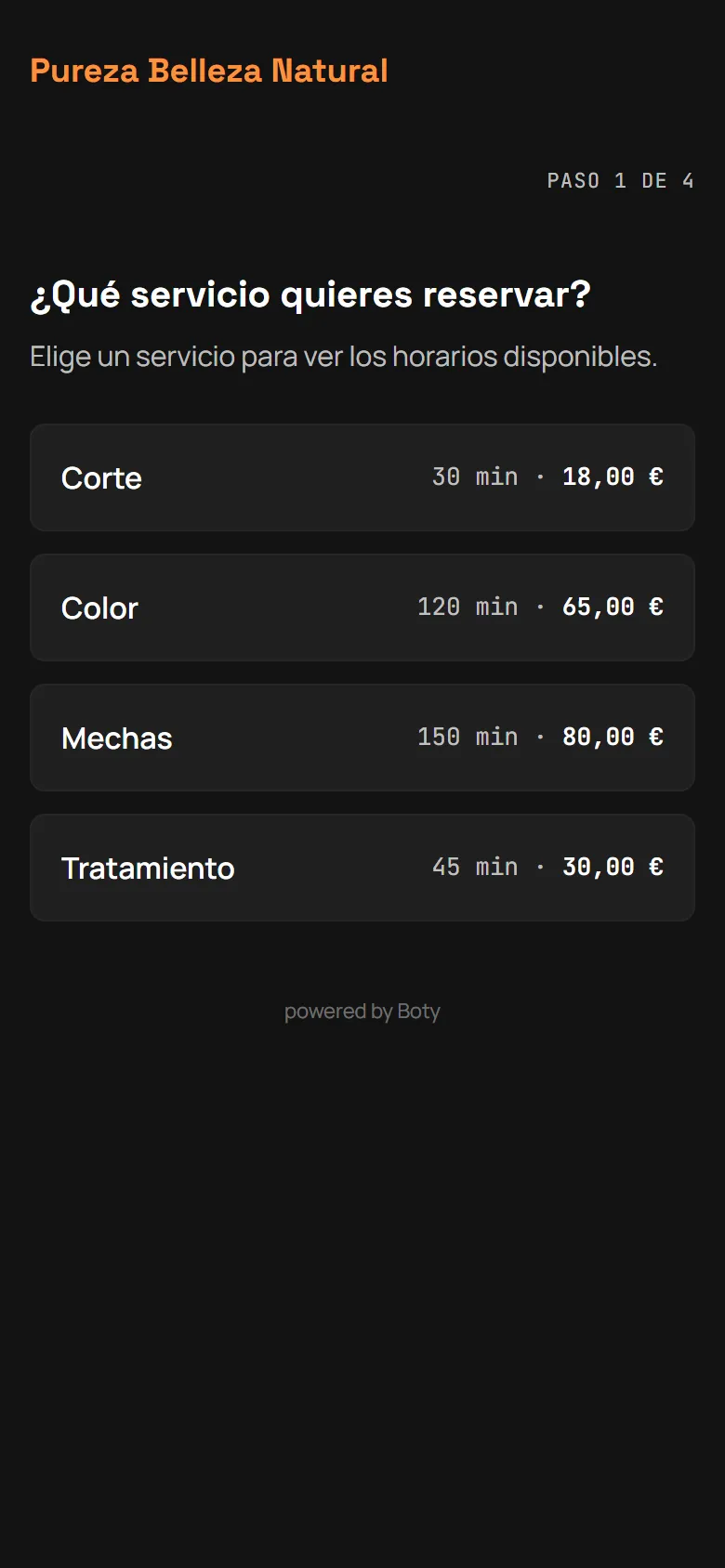
Section titled “The guest’s journey”- Servicio (Service). A list of active services, with name and duration. The price shows next to it only when the service has one; a service priced at 0 is listed without a price.
- Profesional (Professional). Automatically skipped when the business has a single active professional. With two or more, the guest picks a specific person or “Cualquiera disponible” (Anyone available — whoever has the fewest appointments that day).
- Día y hora (Day and time). A full month calendar opens immediately, marking days with availability; the rest are dimmed and non-interactive. Tapping a day shows its times instantly. Only genuinely bookable slots are offered (existing blocks and appointments already subtracted), always in the business’s local time, never the guest device’s.
- Sus datos (Their details). Name, phone, an optional email (recommended), and an optional note. Before confirming, the page states the real window: “Podrás cambiar o cancelar esta cita hasta N horas antes” (You’ll be able to change or cancel this appointment up to N hours before) — or “hasta el mismo momento de la cita” (up to the very moment of the appointment) when the business requires no margin. Then the mandatory RGPD consent checkbox: “Acepto que mis datos (nombre, teléfono y, si lo indico, email) se usen únicamente para gestionar esta reserva, según la política de privacidad del negocio.” When the business has published its policy, that text is a real link; when it hasn’t, the page says so and adds that the guest can request access to or deletion of their data directly from the business. Without checking the box, the confirm button stays disabled. If the guest leaves an email, they receive the confirmation with your name, your colours, and the link to manage it; the phone remains the required field.
- Confirmación (Confirmation). The “Gestionar mi cita” (Manage my
appointment) button and, below it, the full URL written out with a
copy button. They can also add the appointment to their calendar
(
.icsfor iPhone/Android/Outlook, or a direct Google Calendar link) and, where the browser supports it, “Instalar en mi móvil” (Install on my phone) — a home-screen shortcut so they can come back without hunting for the link.
How the guest gets back to their appointment
Section titled “How the guest gets back to their appointment”Four paths, none requiring an account or password: the email (if left, the confirmation carries the manage link), their calendar (the added event carries the link in its description), the browser itself (the page remembers the booking made from that device — lost if the guest clears data, uses private browsing, or the browser blocks storage), and a manually saved link. A guest who left no email, saved nothing, and changed device must call the business; that’s why email is recommended.
Managing an appointment already made
Section titled “Managing an appointment already made”The confirmation link leads to /r/<slug>/cita/<token>: the appointment
summary and, while still inside the window, Cambiar fecha u hora
(Change date or time — same calendar as step 3, limited to the
professional already assigned — never reassigns) and Cancelar cita
(Cancel appointment).
Cancellation is allowed until the cutoff — 12 hours before the appointment, by default. Each business can change that cutoff under Ajustes → Cancelaciones (“Plazo mínimo para cancelar (horas)”, 0 to 168); the confirmation email always states the number in force.
Past that cutoff, the page reads “Ya no se puede gestionar online” (“This can no longer be managed online”) and, if the business has a phone number configured under Marca, shows direct call and WhatsApp links — the guest contacts the business directly; Reserve sends no message on its own.
Business branding on this page
Section titled “Business branding on this page”If the business configured a logo, name, and color under Branding and booking link, this page uses them in the header and on buttons, with an accessible color computed server-side. With no branding configured, the page falls back to a safe neutral style, never a broken one.
At the foot of every step there’s a discreet “powered by Boty” link — only when the business left that toggle on under Marca (on by default).
Limits
Section titled “Limits”- Attempt limit: at most 5 booking attempts per IP every 15 minutes, to slow down automated abuse — a real guest never gets near that cap.
- Slots that get taken: if two people try the same slot at once, whoever confirms second gets a warning and the time list refreshes instantly — two appointments are never created in the same slot.
- The guest cannot join the waitlist from this page: only the business adds that entry, from the console.
- No online payment at any step.
Última verificación: